Skip to content
  • Features
    • Integration features​
    • Customization features
  • Pricing
  • Knowledge Base
  • Start building
  • Features
    • Integration Features
    • Customization features
  • Pricing
  • Knowledge Base
Start building

Getting started with Quikapp

1
  • How to create a app

Prerequisites

1
  • Prerequisites for Quikapp

Domain verification

1
  • How to Verify Your Domain

Integrations

6
  •  Google sign in:
  • Google AdMob
  • Google Analytics
  • Chatbot
  • Push Notification
  • What Is Integration?

Customization

6
  • What Is Customization?
  • App Icon
  • Splash Screen
  • Bottom Nav bar
  • Loading indicator
  • Pull to refresh

Permission

1
  • Permission

Build Configuration

2
  • Build configuration for iOS
  • Build configuration for Android

App Screenshot

3
  • What is App Screenshot?
  • What is App Screenshot (Android) ?
  • What is App Screenshot (ios) ?

How to

9
  • How to install Java
  • How to create keystore for Android
  • How to get Team ID
  • Configure  Push Notification for Android
  • Configure  Push Notification with APNs – iOS
  • How to Install openSSL
  • How to Create Provisioning Profile – iOS
  • How to create Certificate for iOS
  • App Store Connect API

Pricing

1
  • Pricing

Tickets

1
  • Ticket

FAQ

3
  • Build
  • Publish
  • Push Notification

Account Center Guide

1
  • Account Center
View Categories
  • Home
  • Docs
  • Splash Screen

Splash Screen

The Splash Screen is the first screen users see when launching the app.
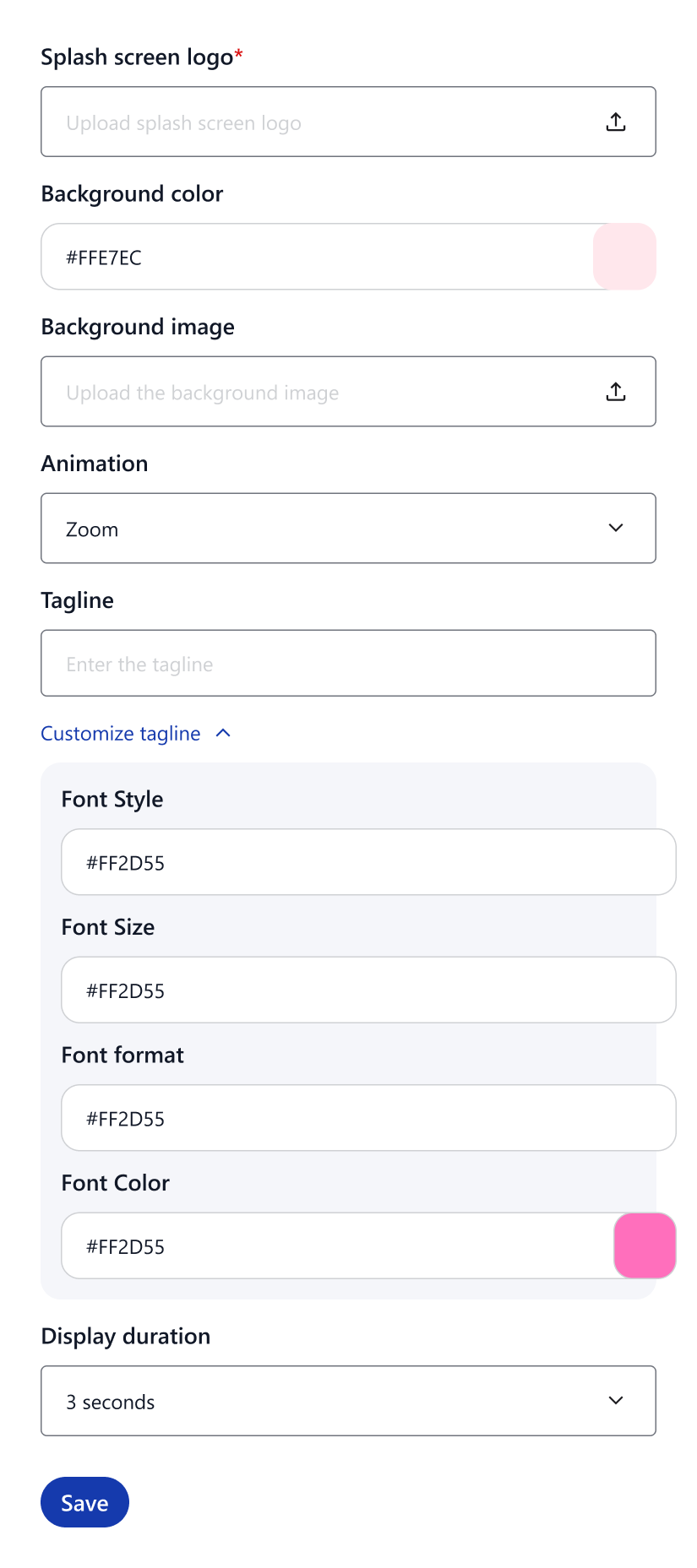
As shown in the image, QuikApp allows you to fully customize this screen to create a strong first impression and match your brand identity.

What Is the Splash Screen?

  • The screen displayed while the app is loading
  • Appears before the website or main app content loads

Why It’s Important

Improves user experience
Provides a smooth and polished app launch experience.
Prevents blank or white screens
Keeps users engaged while the app initializes.
Reinforces brand identity
Showcases your logo, colors, and brand message from the first moment.

Customization Options

Logo Settings

  • Splash Screen Logo
    Upload your brand logo to be displayed on launch.
  • Logo Size
    Choose from Small, Medium, or Large.

Animation

  • Animation Type
    Select how the logo appears (e.g., Fade, Zoom, Slide, Rotate, None).

Background

  • Background Color
    Set a solid background color.
  • Background Image
    Upload a custom background image (optional).

Tagline / Text

  • Tagline
    Add a welcome message or brand tagline (e.g., “Welcome Message”).
  • Font Style
    Choose the font family for the text.
  • Font Color
    Set the text color.
  • Font Size
    Adjust the text size.
  • Font Format
    Apply Bold or Italic styling.

Display Duration

  • Display Duration
    Control how long the splash screen is shown (e.g., 1–5 seconds).

How to Customize the Splash Screen

  1. Go to Customization → Splash Screen
  2. Upload your logo and optional background image
  3. Set logo size and animation
  4. Add a tagline or welcome text (optional)
  5. Choose display duration
  6. Save and preview the app

If Not Provided

  • The app will open directly to the website home page
  • The app may appear less polished or unbranded on launch
Updated on January 22, 2026

What are your Feelings

    Build powerful, fully customizable Android and iOS apps effortlessly with our platform no coding required. Empower your vision with professional features and seamless publishing.

    Facebook-f Instagram Twitter Youtube

    Get help anytime check out our

    Knowledge Base
    • Privacy Policy
    • Terms of Service
    • Refund & Cancellation Policy
    © 2026 Quikapp All Rights Reserved.