Skip to content
  • Features
    • Integration features​
    • Customization features
  • Pricing
  • Knowledge Base
  • Start building
  • Features
    • Integration Features
    • Customization features
  • Pricing
  • Knowledge Base
Start building

Getting started with Quikapp

1
  • How to create a app

Prerequisites

1
  • Prerequisites for Quikapp

Domain verification

1
  • How to Verify Your Domain

Integrations

6
  •  Google sign in:
  • Google AdMob
  • Google Analytics
  • Chatbot
  • Push Notification
  • What Is Integration?

Customization

6
  • What Is Customization?
  • App Icon
  • Splash Screen
  • Bottom Nav bar
  • Loading indicator
  • Pull to refresh

Permission

1
  • Permission

Build Configuration

2
  • Build configuration for iOS
  • Build configuration for Android

App Screenshot

3
  • What is App Screenshot?
  • What is App Screenshot (Android) ?
  • What is App Screenshot (ios) ?

How to

9
  • How to install Java
  • How to create keystore for Android
  • How to get Team ID
  • Configure  Push Notification for Android
  • Configure  Push Notification with APNs – iOS
  • How to Install openSSL
  • How to Create Provisioning Profile – iOS
  • How to create Certificate for iOS
  • App Store Connect API

Pricing

1
  • Pricing

Tickets

1
  • Ticket

FAQ

3
  • Build
  • Publish
  • Push Notification

Account Center Guide

1
  • Account Center
View Categories
  • Home
  • Docs
  • Push Notification

How to send / create push notification

QuikApp allows you to send instant or scheduled push notifications to your app users on Android, iOS, or both platforms.

Configuration Guides (Required Before Sending Notifications)

Before sending notifications, configure push services:
  • How to Configure Firebase Push Notification – Android
  • How to Configure Push Notification for iOS (Firebase + APNs)
Follow the steps below to create and send notifications easily.

Step-by-Step Guide

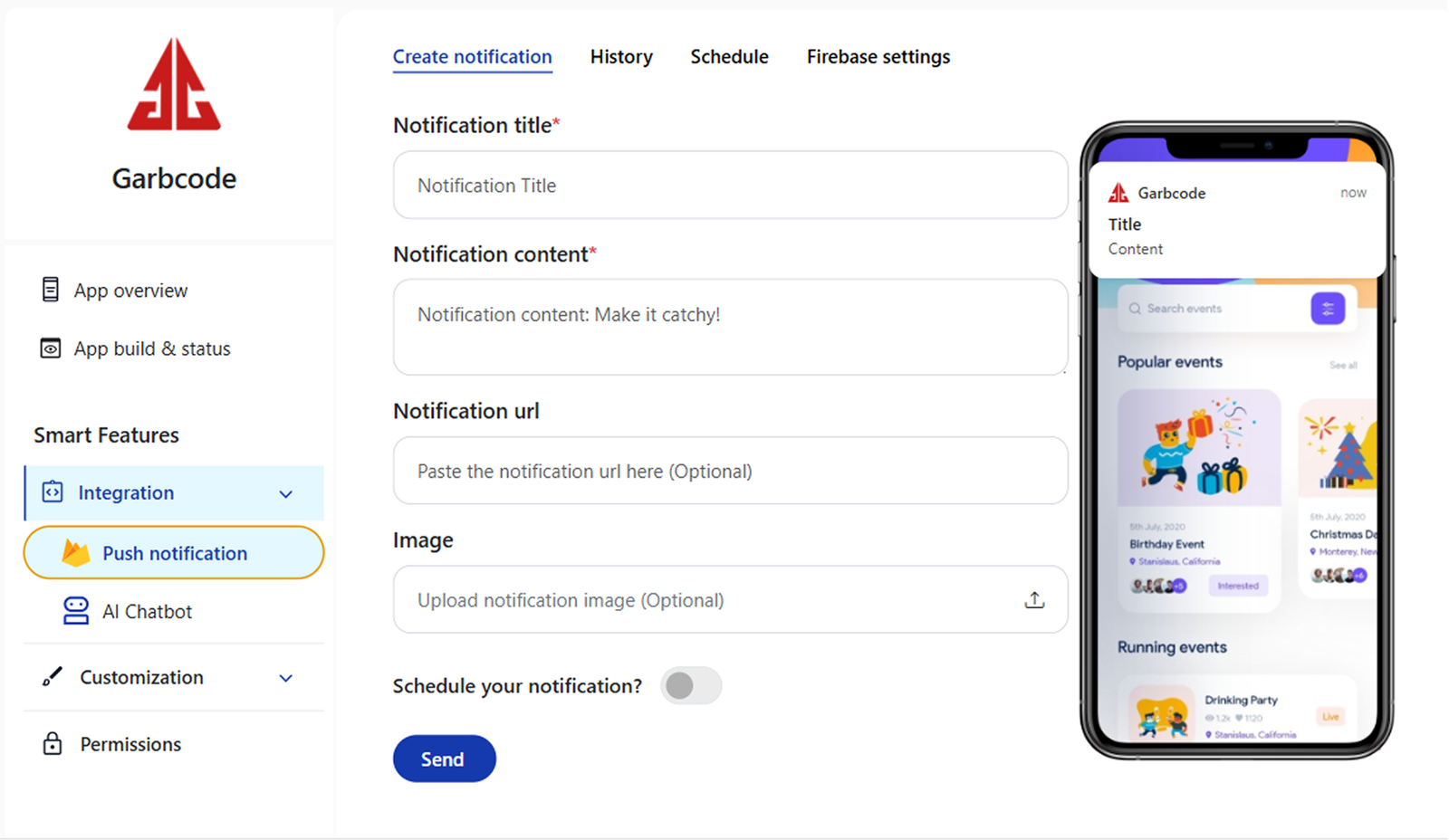
Step 1: Open Push Notifications
  1. Navigate to App overview.
  2. From the left-side menu, click Push Notification.
  3. Open the Create Notification tab.
Step 2: Select App
  1. Choose the app from the dropdown list for which you want to send the notification.
Step 3: Enter Notification Details
  • Notification Title
    • Enter the title that will appear on the user’s device.
  • Notification Content
    • Enter the message body of the notification.
  • Notification Image (Optional)
    • Upload an image to make your notification more engaging.
Step 4: Select Target Devices
Choose where you want to send the notification:
  • Android
  • iOS
  • Both Android & iOS
Step 5: Send or Schedule Notification Send Now
  • Click Send Now to deliver the notification immediately.
Schedule Notification
  • Enable the Schedule Notification option.
  • Select:
    • Date (DD / MM / YYYY)
    • Time (Hours / Minutes / AM or PM)
Click Done to schedule the notification.
Step 6: View Scheduled Notifications
  • All scheduled notifications can be viewed under the Schedule tab.
  • You can monitor, edit, or cancel scheduled notifications from there.
Important Notes
  • Push notifications will work only after Firebase (Android & iOS) setup is completed.
  • Make sure users have enabled notification permissions on their devices.
  • Images in notifications are optional but recommended for higher engagement.
Updated on March 7, 2026

What are your Feelings

    Build powerful, fully customizable Android and iOS apps effortlessly with our platform no coding required. Empower your vision with professional features and seamless publishing.

    Facebook-f Instagram Twitter Youtube

    Get help anytime check out our

    Knowledge Base
    • Privacy Policy
    • Terms of Service
    • Refund & Cancellation Policy
    © 2026 Quikapp All Rights Reserved.